Safari is the built-in browser on the iPhone.
You probably use it every day to browse websites or read online novels, but there are a few helpful features you might not know about, like Reader Mode, hiding page elements, page translation, and locking Private Browsing.
I've put together six Safari tips I use all the time.Follow the steps and you'll make Safari much easier to use.
Reader Mode
If you read novels using Safari on your iPhone, you've definitely seen pages with tiny text, bad layouts, or way too many ads. It's uncomfortable to read even a few lines.
Once I discoveredReader Mode, I started using it all the time. It strips the page down to just text and images, and lets you change the text size, background color, and font. Super convenient.
I usually switch to the beige background because it feels like reading a real book, and it's much easier on the eyes.
Steps
- Open the webpage in Safari.
- Tap the Reader icon
 on the left side of the address bar.
 - Tap “Show Reader”.
- Tap the icon again
 to change the background, text size, or font.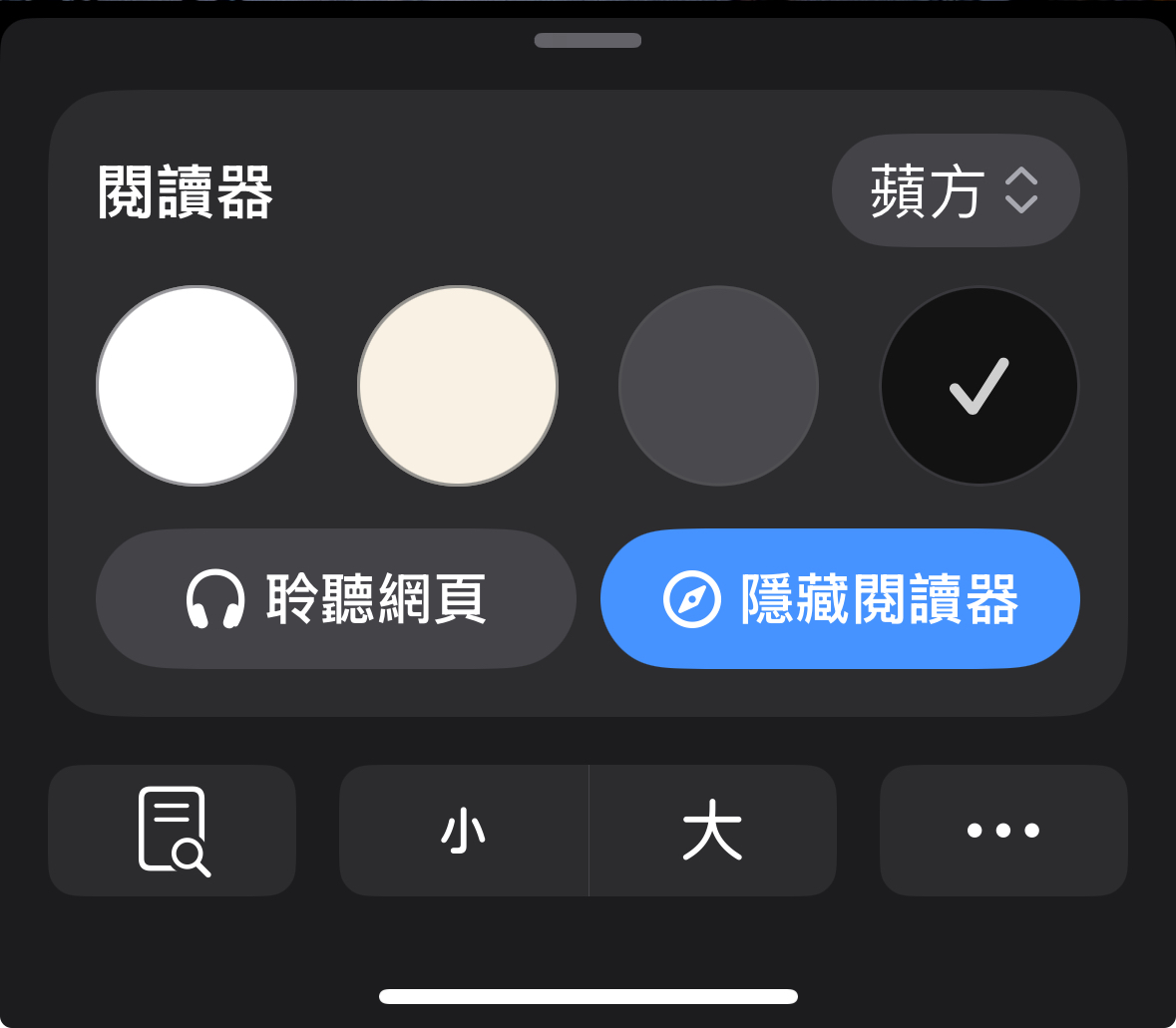
- Tap “Hide Reader” to switch back to the original view.
Hide Page Elements (Hide Ads)
A lot of websites are full of ads, and honestly, they’re really distracting.
Starting from iOS 18, Safari has a built-in “Hide Element” feature.
You can hide specific ad sections directly on your phone. Other browsers usually need extensions for this, but Safari can do it on its own.I love this feature.
Steps
- Open the webpage in Safari.
- Tap the Reader icon.
- Select “Hide Distracting Items”.
- Tap the ad or section you want to hide, then select “Hide”.

- Tap “Done”.
Want to seeReader ModeandHide Adswork in action?
I made an IG Reel that shows both features so you can learn them even faster.
👉 Tap here to watch Part 1 of the tutorial.
(Remember to follow me. Part 2 is coming soon!)
Private Browsing Mode
I often use Private Browsing to test webpages or search for flight tickets.
If you care about privacy, Safari lets you lock Private Browsing.
Basically, Safari uses your iPhone’s Face ID to unlock your private tabs.
So before anyone can see the tabs you opened, they have to pass Face ID first.
Steps
- Go to Settings > Apps > Safari > Turn on “Require Face ID to Unlock Private Browsing”.
- Open Safari and tap the tabs icon.
- Tap “Private”.
- Face ID will pop up automatically.
- If it doesn’t, force-quit Safari and reopen it.
Close All Tabs at Once
One time I realized I had over 100 tabs open… I couldn’t even tell what they were anymore.
Safari lets you close every tab at once to save time.
Steps
- Open Safari and tap the tabs icon.
- Press and hold “Done” icon.
- Select“Close All Tabs”.

Continue Browsing iPhone Pages on Mac (Handoff)
When I want to switch from my iPhone to my Mac, I can open the same Safari page instantly on my computer.
I don’t need to copy links at all. Handoff makes switching between devices completely seamless.
Steps
- Make sure your iPhone and Mac are signed in with the same Apple ID.
- iPhone: Settings > General > AirPlay & Continuity > Turn on Handoff.
- Mac: Settings > General > AirDrop & Continuity > Enable Handoff.
- Open Safari on your iPhone. A Safari icon will appear on the Mac Dock. Click it to open the same page.
Want to copy from iPhone to Mac? Check out this guide:Copy and paste between iPhone iPad and Mac made super easy
Translate Webpages
Safari can translate English pages or any other foreign language pages with one tap. No extra apps needed.
Steps
- Open the page you want to translate.
- Tap the Reader iconon the left side of the address bar.
- Tap “Translate Website”.
- Choose Traditional Chinese or any language you prefer.
Summary
These Safari tips are ones I use all the time, and they’re all easy to set up.
If you love reading online, want to hide annoying ads, care about privacy, or use both an iPhone and a Mac, give these steps a try to make your browsing smoother.
I’ll also be sharing a Safari for Mac guide soon. Hope it helps more people enjoy using this browser.
