Do you also use Google Photos to back up your phone or tablet photos? This convenient backup method has been a popular choice for many people. I am no exception either.
But have you ever thought about backing up your Google Photos ? I have. So, in this post, I want to share how to download and export all the photos and videos from Google Photos at once.
Why I decided to back up my Google Photos
You might be wondering, since all your photos are already on Google Photos, why bother downloading and backing them up again?
Honestly, it’s just fear. I worry that one day my photos could be gone from the cloud, and I’d seriously regret it.
Cloud storage is convenient, but it’s not perfect. I keep a second copy of my data just for peace of mind.
That’s when I found Google Takeout, a tool that lets you download all the data from your albums.
Using Google Takeout
Before you start, you’ll need to sign in to your Google account. Then, head over to Google Takeout to configure your settings. This feature isn’t just for your photos; it also lets you export Gmail, contacts, calendars, and more.

Create a New Export
The first step in creating a new export is to select Google Photos. From there, you can adjust the export formats and choose specific albums.

Choose File Type, Frequency, and Destination
I chose "Send download link via email," but you can also choose to transfer the files to Google Drive or other cloud storage services.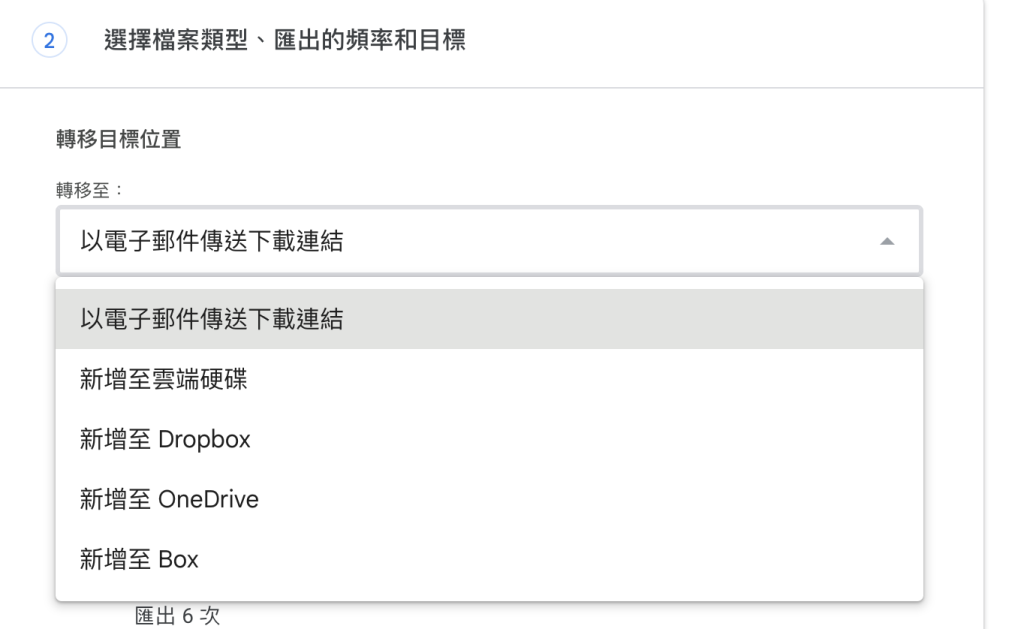
Frequency
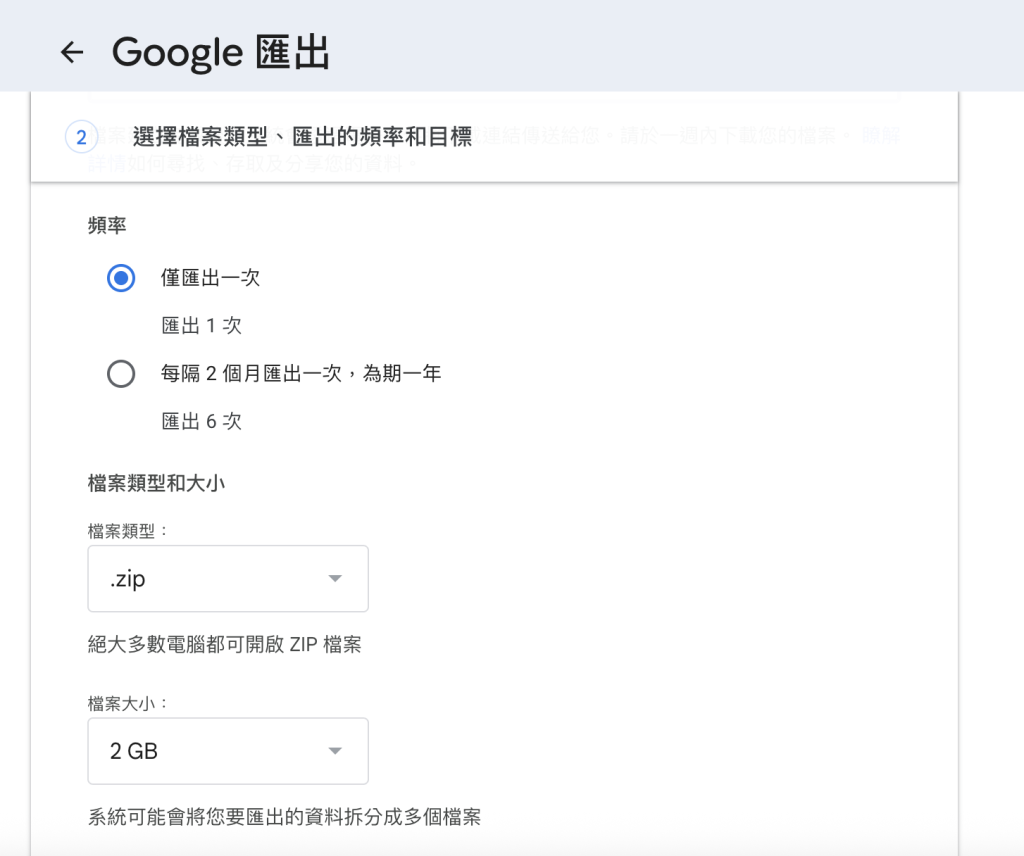
Depending on your preference, you can choose to "Export once" or "Export every 2 months."
 .
.
File Type
You can leave this setting as it is and select .zip.
File size
You can choose the size for each individual file based on your preference.Personally, I prefer using 4GB.
For instance, if your album has 100GB of data, you will get 25 separate 4GB zip files for download.
Once you’ve confirmed the settings, just click "Create export" to finish.
Downloading Your Files
At this point, you'll usually need to wait about two to three days.Once your files are ready, Google will send you an email with the download links.Keep in mind that these links are only valid for one week.
Just click the links in the email to download your files, and you're all set!
For me, as long as I know the data is fully downloaded, that’s enough. Since I’m keeping these as backups, I don’t usually bother unzipping them. I store all the downloaded files on an external hard drive, so they don’t take up any space on my computer.
Summary
This is exactly how I back up my own Google Photos.
It’s okay if you don’t need these files on a daily basis; the important thing is that you won’t have to worry about losing everything overnight.
If you keep your memories in the cloud, a second backup is definitely worth the effort!
